

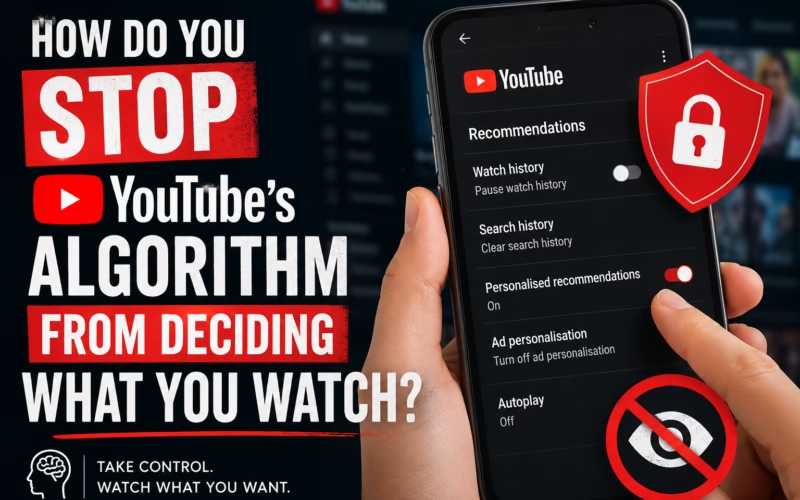
How do you stop YouTube’s algorithm from deciding what you watch? It is a question that creeps into your mind after the third autoplayed video about a conspiracy theory you accidentally clicked once. I have been there. You open YouTube to find a specific tutorial, and an hour later you are down a rabbit hole you never asked for. The homepage feels less like a library and more like a mind reader that has got your preferences slightly wrong. Yet, for all its eerie accuracy, the recommendation engine is not an all-powerful puppet master. You have a surprising number of levers you can pull to reclaim your feed. This article walks through exactly how YouTube recommendations work, why they can feel so controlling, and the practical steps you can take to stop YouTube’s algorithm from deciding what you watch, without having to abandon the platform altogether.
How YouTube’s recommendation algorithm actually works
To control something, you first need to understand it. YouTube’s recommendation system is often described as an AI recommendation system powered by deep neural networks, but at its heart it does one thing: it predicts what you are most likely to click and watch for as long as possible. It uses a massive amount of signals, some obvious and some you might never have considered.
Your YouTube watch history is the heavyweight champion. Every video you watch, whether you finish it or drop off after ten seconds, teaches the algorithm about your current interests. The same goes for your YouTube search history. Those late-night queries about sourdough starters or Python error codes are not forgotten; they quietly reshape what appears on your homepage and in the sidebar. Engagement signals such as likes, dislikes, shares and comments provide even more granular clues. A video you gave a thumbs-up carries a different signal than one you simply watched passively.
Behind the scenes, watch time and session duration are the metrics YouTube obsesses over. The platform wants you to stay. If you tend to binge long-form documentaries, the algorithm will serve more of them. If you jump between Shorts, it will keep the short-form content flowing. Your subscriptions also play a role, but they are not the whole story. You might be subscribed to a creator you barely watch, and the algorithm knows that. Location, language, the device you use and even the time of day subtly shift the recommendations. Your broader Google account activity, from searches on Google.com to apps you use, can also bleed into your YouTube personalised recommendations if those settings are linked.
This recommendation engine is not static. It constantly updates as your behaviour changes. Much like the way AI browser assistants learn your browsing patterns, YouTube’s system refines its model after almost every interaction. That is why it can feel so eerily relevant, and why it can also trap you in a filter bubble of the same topics over and over.
Can you completely stop YouTube’s algorithm?
Let us get the honest answer out of the way. You cannot flip a switch and disable the entire YouTube recommendation system. The platform is built on suggestions. Even if you turn off every personalisation setting, YouTube still needs to show you something when you open the app or finish a video. What you can do is drastically reduce how much your personal data shapes those recommendations.
There is a crucial difference between the various surfaces inside YouTube. The homepage is almost entirely driven by personalised recommendations. Your subscriptions feed is purely chronological, showing only videos from channels you follow. The search results rely on relevance to your query, though personalisation can still nudge the ranking. Suggested videos in the sidebar or at the end of playback are partly based on the video you are watching and partly on your history. Shorts work like a separate recommendation engine tuned for vertical, rapid-fire content. Autoplay uses the current video as a seed, but it will quickly veer into personalised territory if your history is on. Notifications from channels you subscribe to sit outside the algorithmic curation, though YouTube sometimes slips in recommendations there too.
Understanding these layers helps you see that you can sidestep the algorithm by choosing where you spend your attention. You cannot kill the recommendation engine, but you can starve it of the personal data it uses and rely more on the untainted corners of the platform.
How do you stop YouTube’s algorithm from deciding what you watch?
Stopping the algorithm from dictating your evening viewing is not about one magic setting. It is about a combination of deliberate habits and configuration tweaks. When I began treating my YouTube consumption like curating a personal library rather than flicking through television channels, everything changed. The goal is to shift from being a passive viewer swept along by suggestions to an intentional viewer who uses search, subscriptions and playlists as the primary discovery tools. The steps below are exactly the ones I have tested on my own accounts, and they work whether you are on desktop, mobile or a smart TV.
Ways to reduce YouTube’s influence over your viewing
Pause watch history
This is the single most powerful lever you have. Open YouTube settings, tap or click “History & privacy”, and toggle “Pause watch history”. Once paused, YouTube stops recording the videos you watch for personalisation. Your homepage will still show recommendations, but they will be based on a generic mix of trending content, popular videos in your region, and possibly a faded memory of your previous interests. I did this for a month, and my homepage transformed from a hyper-specific feed of niche tech reviews and obscure music into a broader, less gripping selection that I could easily ignore. Pausing watch history also stops your activity from influencing Google ads, though that is a separate setting. Keep in mind that any videos you watch while history is paused will not appear in your history list, so you cannot retrace your steps.
Delete watch history and search history
Clearing your YouTube watch history and YouTube search history is like a fresh start. In the same settings screen, you can choose “Clear watch history” and “Clear search history”. This removes the immediate data points the algorithm uses. For a more thorough clean, head to myactivity.google.com, find YouTube History, and delete items there. The effect is not instantaneous, but you will notice your homepage recommendations become less personally relevant within hours. Be aware that clearing history also removes your ability to pick up a half-watched video later, and it resets the “watch later” tracking you might have relied on.
Turn off personalised ads
Although ad personalisation is separate from video recommendations, turning it off sends a broader signal that you want less tracking. Visit your Google account’s ad settings and switch off “Ad personalisation”. You will still see ads, but they will not be based on your watch history. This does not directly change your video suggestions, but it reduces the overall sense that Google is watching you. It is a small step that contributes to a healthier digital wellbeing practice.
Use Incognito Mode
YouTube’s mobile app offers an Incognito mode that works exactly as you would expect. When you activate it, none of your watch or search activity is saved to your account. I use this when I want to watch something completely outside my usual topics without poisoning my recommendations. The moment you leave Incognito, you return to your normal feed. It is a brilliant way to explore content without leaving a trace, and it is especially useful if you share a device with family members who have different tastes.
Use separate Google accounts or brand accounts
For a more permanent separation, create a brand account solely for specific interests. You can have multiple YouTube channels linked to one Google account, each with its own watch history, subscriptions and recommendations. I keep my main account for professional learning and a separate one for music and entertainment. This way, neither feed bleeds into the other. It is an underutilised YouTube tip that costs nothing and gives you instant content discovery control.
Subscribe instead of relying on the homepage
The simplest way to avoid the algorithm is to ignore its most powerful playground. Make a habit of opening YouTube directly to the subscriptions feed. Bookmark youtube.com/feed/subscriptions on desktop, or press the Subscriptions tab in the app. This feed is a chronological list of the latest videos from the channels you have chosen. It has zero algorithmic curation. You can finally watch what you actually asked for. I found that switching my default tab to Subscriptions reduced my daily YouTube time by nearly forty percent because I was no longer lured by a stream of suggestions I never requested.
Mark videos as “Not Interested” and choose “Don’t Recommend Channel”
These two small buttons do heavy lifting. When you see a video on your homepage you do not like, click the three-dot menu and select “Not interested”. If a whole channel keeps surfacing, select “Don’t recommend channel”. The algorithm learns from this negative signal quickly. I do this for a few minutes every week, and my feed stays remarkably tidy. It is not a perfect filter, but it trains the recommendation engine to understand your viewer preferences more accurately.
Disable Autoplay
Autoplay is the engine that pulls you from one video to the next without conscious choice. Turn it off using the toggle that appears on the video player itself. On desktop it sits in the top right of the player; on mobile you will find it in the player controls. Without autoplay, the next video only starts if you actively press play. This single change interrupts the passive consumption loop and gives you a moment to decide whether you really want to continue. It is one of the most effective digital wellbeing moves you can make.
Use browser extensions carefully
Extensions like “Unhook” or “DF YouTube” can hide the homepage, suggested videos sidebar and even comments. They let you turn YouTube into a clean search box and subscription portal. I have used them and found them liberating, but always choose well-reviewed extensions and understand that they modify your browsing experience. They are not official YouTube tools, so they can break occasionally when the site updates. Still, for anyone who wants to radically remove YouTube homepage recommendations and suggested videos, they are a practical solution.
Manage Google Activity controls comprehensively
Go beyond YouTube settings and explore your Google account’s “Data & privacy” section. Under “History settings”, you can control Web & App Activity, Location History and YouTube History globally. By toggling off Web & App Activity, you stop Google from linking your YouTube behaviour with your searches across other services. This helps decouple YouTube from the larger Google recommendation system. It also has implications for other products, so weigh the trade-offs. For those curious about how cloud AI services handle data, understanding What Is Amazon Bedrock can put Google’s approach into perspective.
Create intentional viewing habits
Ultimately, algorithms feed on impulse. When I began keeping a small list of videos I genuinely wanted to watch and using playlists as a queue, I stopped relying on whatever YouTube threw at me. Search manually, subscribe to channels you trust, and build playlists for different moods. The more you treat YouTube like a library you walk into with a purpose, the less control the recommendation engine has over your time.
How to reset your YouTube algorithm
If you want to wipe the slate clean and start afresh, follow this step-by-step guide to reset YouTube algorithm signals. The process is similar across devices, but I will break it down.
Desktop
- Click your profile picture in the top right corner.
- Select “Your data in YouTube”.
- Scroll to “YouTube Watch History” and click “Manage your YouTube Watch History”.
- Select “Delete” and choose “Delete all time”. Confirm.
- Go back and do the same for “YouTube Search History”.
- While still on the same page, click “Manage your YouTube History controls” and pause both watch history and search history.
- Close and reopen YouTube. Your homepage will now reflect generic suggestions.
Android
- Open the YouTube app, tap your profile picture.
- Tap “Settings”, then “History & privacy”.
- Tap “Clear watch history” and “Clear search history”.
- Toggle “Pause watch history” and “Pause search history” on.
- Restart the app.
iPhone
- Follow the same steps as Android. The YouTube app on iOS has an identical settings layout.
- Alternatively, use the mobile web browser to access myactivity.google.com for a more granular deletion.
Smart TV
- Open the YouTube app, go to “Settings” in the left-hand menu.
- Select “History & privacy”.
- Choose “Clear watch history” and “Clear search history”.
- There is often no pause toggle on TV apps, so you may need to do this through a web browser on your phone or computer signed into the same account.
- Once cleared, sign out and sign back in on the TV to refresh the recommendations.
Resetting your YouTube algorithm does not remove the suggestions that appear next to the video you are currently playing. Those are partially driven by the video’s topic and global co-watching patterns, so they remain even with a blank history.
Does deleting history really reset recommendations?
Yes and no. Deleting your YouTube watch history immediately removes the primary dataset the algorithm uses to personalise your homepage. You will see a noticeable shift within hours, often to more generic, location-based or trending content. What does not change overnight is the deeper model Google has built on your long-term taste profile. Even with history gone, the system might still show you content similar to what you watched months ago, because it uses cached patterns and other signals like your subscriptions and liked videos. I have noticed that completely purging history and then spending a week deliberately watching only a narrow set of videos slowly rebuilds the recommendations around that new behaviour. Be patient; changes can take anywhere from a few hours to several days. Also, if you have ever shared your account or watched videos without signing in on a device linked to your account, those impressions may linger. Think of it as a gradual fading rather than an instant switch.
Pros and cons of reducing algorithmic recommendations
| Pros | Cons |
|---|---|
| Fewer distracting rabbit holes and less mindless scrolling. | You may miss genuinely useful videos that the algorithm would have surfaced. |
| Reduces algorithmic bias and breaks the filter bubble. | Manual discovery takes more effort and time. |
| Better privacy and less data collection tied to your viewing habits. | Homepage becomes less interesting, which can feel dull for casual browsing. |
| Forces a healthier relationship with the platform, aligned with digital wellbeing. | Some creators you would enjoy might never reach you because they rely on recommendations. |
| Subscriptions feed provides a cleaner, chronological timeline. | Paused watch history means you lose the ability to resume watching where you left off. |
| Easier to avoid echo chambers and hear a wider range of voices. | YouTube’s search results can still be slightly personalised even with history off. |
Common myths about YouTube’s algorithm
Myth 1: YouTube’s homepage only shows videos I have watched before.
Reality: The homepage also includes videos popular in your region, trending content, and recommendations based on linked Google activity, not just your watch history. Even a fresh account gets suggestions.
Myth 2: Deleting my YouTube history stops all recommendations.
Reality: While it severely limits personalisation, contextual recommendations based on the video you are currently watching still appear. The sidebar and autoplay use the video’s metadata and co-watching data.
Myth 3: Incognito Mode prevents YouTube from knowing what I am watching.
Reality: It stops your account from recording the activity, but YouTube’s servers still receive the request. Network-level tracking is a different matter, and Incognito does not make you invisible.
Myth 4: If I pause watch history, YouTube stops recommending anything.
Reality: The platform will still fill the homepage. It simply falls back to non-personalised signals like regional popularity and the video’s own performance metrics.
Myth 5: Marking videos as “Not Interested” is pointless.
Reality: It provides a strong negative signal that the algorithm uses quickly. Consistent feedback over a week noticeably reshapes the feed, though you need to do it regularly.
Myth 6: The algorithm is just one big mystery that nobody understands.
Reality: While the exact models are proprietary, YouTube has published papers and blog posts explaining its recommendation principles. We know it uses deep collaborative filtering, watch time optimisation and a wide array of user engagement signals.
Myth 7: Subscriptions alone determine what I see.
Reality: The subscriptions feed is chronological, but the homepage, suggested videos and notifications are all curated separately. You can be subscribed and still never see a creator’s content unless you actively visit the feed.
Myth 8: Private browsing extensions completely anonymise my YouTube use.
Reality: They can hide the homepage or block tracking cookies, but YouTube still identifies you if you are signed in. They add a layer of convenience but do not make you anonymous.
Privacy considerations
Managing your YouTube algorithm is inherently a privacy exercise. When you adjust YouTube privacy settings, pause watch history or clear Google activity controls, you are limiting the data that feeds the recommendation engine. This reduces your exposure to algorithm bias and makes your feed less of an echo chamber. The trade-off is that some convenience features, like picking up a video exactly where you left off across devices, disappear. If you use Google products heavily, you might want to keep an eye on the Web & App Activity setting, which ties together your searches, YouTube behaviour and even voice assistant interactions. The same machine learning principles that power recommendation engines also drive AI tools for students, helping them find relevant study resources; the difference is that on YouTube, you have the right to opt out of that personalisation to a surprising degree. Regularly auditing your account at myactivity.google.com is a habit worth forming, much like clearing out an old inbox. It is not a one-time fix but a gentle, ongoing practice that aligns your digital life with your actual preferences.
Best practices for controlling your YouTube experience
- Make the subscriptions feed your default landing page. It is the purest form of YouTube consumption.
- Use the “Watch later” playlist as an intentional queue rather than letting autoplay decide.
- Once a week, do a two-minute cleanup: clear videos from your watch history that do not reflect your real interests, and mark unwanted suggestions.
- If you share a device, create separate user profiles or brand accounts. This keeps each person’s feed clean.
- When you find a video through search or a link, avoid letting it autoplay into a suggested chain; close it or disable autoplay first.
- Treat Incognito mode as a tool for one-off curiosity, not as your default way to browse.
- Remember that liking and disliking videos actively shapes the feed. Use those buttons deliberately.
- Set a daily time limit through YouTube’s “Time watched” feature in settings to nudge yourself away from passive scrolling.
Frequently Asked Questions
Does pausing watch history stop all YouTube recommendations?
No, pausing watch history prevents YouTube from using your future watch activity for personalisation. Your homepage will still show suggestions, but they will be based on general factors like regional trends and video popularity. Suggested videos next to a video you are watching will still appear because they are derived from the content itself and collective viewing patterns, not your personal history. You will also continue to see content from channels you are subscribed to if you use the subscriptions tab.
Can I turn off YouTube recommendations completely?
You cannot disable the recommendation system entirely. YouTube must populate the homepage, sidebar and end screens with videos. The closest you can get is using browser extensions that hide those elements visually, or sticking exclusively to the subscriptions feed and manual searches. Even then, search results can still be subtly personalised. However, by pausing history and clearing old data, you can make recommendations so generic that they feel much less targeted.
How long does it take for YouTube’s algorithm to reset after clearing history?
Initial changes often appear within a few hours, but the full recalibration can take several days. If you continue watching videos after clearing, the algorithm immediately starts building a new profile. The speed depends on how much new activity it sees. To reset YouTube algorithm signals quickly, clear history, pause it, and then deliberately watch only the types of videos you want to see for a couple of days.
Will deleting my YouTube search history stop autoplay from suggesting related videos?
No, autoplay primarily uses the current video’s metadata and global viewing patterns. Deleting your search history removes one input, but the autoplay queue still draws on what similar viewers watched after that video. The only way to stop autoplay-driven suggestions is to disable autoplay entirely, which you can do from the video player controls on any platform.
Does YouTube’s algorithm use my Google searches and other apps?
If your Google account has Web & App Activity turned on, then yes. Google links your searches, Maps queries and even app usage with your YouTube recommendations. This is why you might see YouTube suggestions related to a product you searched for on Google. You can control this by visiting Google activity controls and toggling off Web & App Activity, though it will affect other personalised services.
Why do I still see unwanted recommendations after saying “Not interested”?
The “Not interested” and “Don’t recommend channel” signals are strong, but they are not absolute. YouTube’s algorithm weighs them alongside many other factors. If a video is extremely popular or relevant to a broader interest profile it has built, it may still surface. Being persistent and giving the same feedback across multiple sessions gradually refines the model. It is a training process, not a one-click ban.
Does Incognito Mode in the YouTube app stop the algorithm from learning my preferences?
Incognito Mode prevents the session’s watch and search activity from being saved to your account. Consequently, those videos do not train your personalised recommendations. However, the app still receives the content and can serve local trending suggestions during that Incognito session. Once you leave Incognito, your recommendations revert to whatever your history dictated before.
Can I reset YouTube algorithm on a smart TV the same way as on a phone?
The underlying settings are identical, but the TV app often lacks a direct pause toggle. You can clear watch and search history through the TV’s YouTube settings, but to pause history you may need to use a browser on another device signed into the same account. After clearing and pausing, sign out and back in on the TV to refresh. Some smart TV apps also require a full app restart for changes to take effect.
Will disabling personalised ads affect my YouTube recommendations?
No, ad personalisation and video recommendations are separate systems. Turning off personalised ads stops the targeting of advertisements but does not change the videos YouTube suggests. However, both share the same underlying watch history, so pausing history impacts both. Disabling ads alone will not alter your homepage feed.
Is it better to delete my entire Google account and start over to escape the algorithm?
This extreme measure does work, but it means losing all your subscriptions, purchases, uploaded content and history. A fresh account starts with a blank slate and receives only global recommendations. However, you can achieve a nearly identical result by clearing history, pausing it, and unsubscribing from channels you no longer want, without losing your digital identity. It is a far less disruptive approach.
Final Thoughts
How do you stop YouTube’s algorithm from deciding what you watch? You never completely silence it, but you can turn its volume down to a whisper. By pausing history, leaning on your subscriptions feed, disabling autoplay and regularly tidying your feedback signals, you become the curator of your own YouTube experience. The algorithm is not inherently evil, but leaving it to drive your viewing is like letting someone else choose what books you read. A few intentional tweaks put you back in control. Start with one change, perhaps clearing your watch history tonight, and notice how it feels. Reclaiming your attention is a quiet act of digital self-respect. If you want to explore how AI shapes other parts of your online life, our Complete ChatGPT Guide for Beginners and The Ultimate Guide to AI Tools offer grounded, practical insights without the hype. Understanding tools like AI in SEO can also help you see why platforms design their feeds the way they do. Meanwhile, resources like Best AI Tools for Students illustrate that thoughtful personalisation, when you control it, can be genuinely empowering. The choice should always be yours.
